Before you start
- The exact names of the payment methods you want to reorder.
- The order you want them to appear in checkout.
Watch it instead
Prefer video? Watch the quick tutorial for this setup.
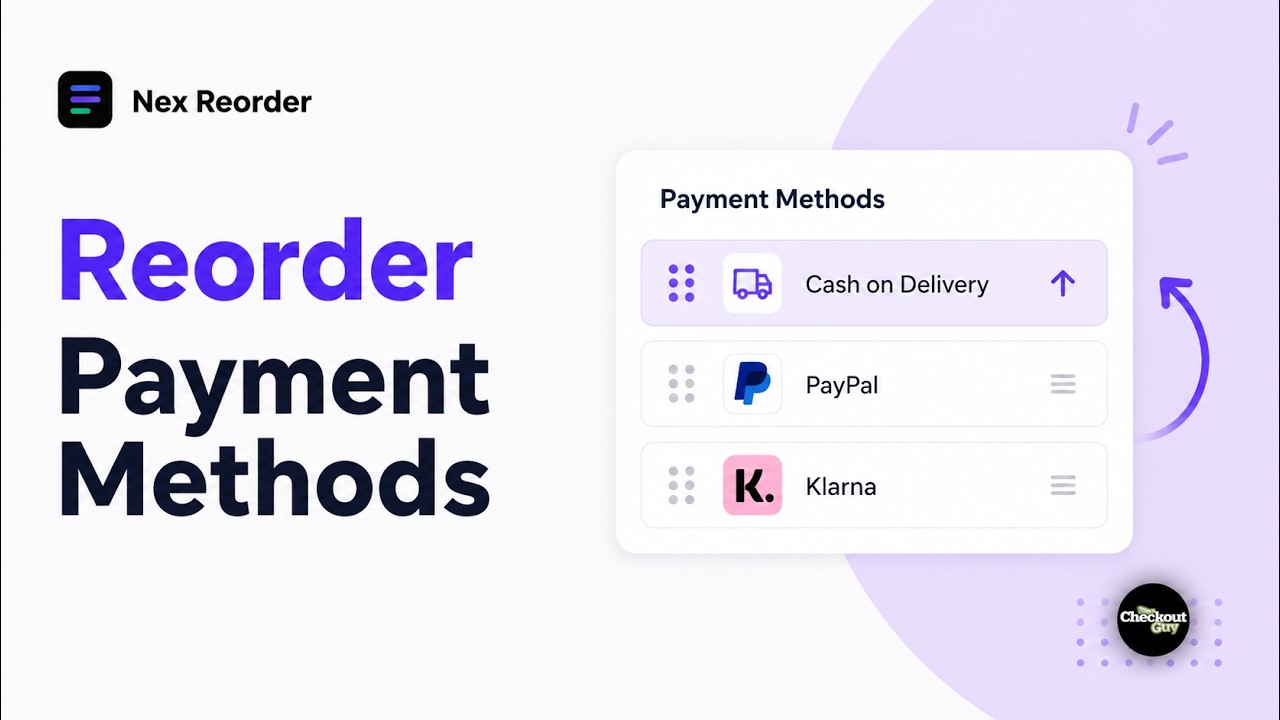
Steps
Step 1 — Install Nex Reorder
Install Nex Reorder from the Shopify App Store and approve the required permissions. If it is already installed, continue to the next step.
Step 2 — Open Quick Reorder Payment Method
From the Payment Methods section, select Quick Reorder Payment Method.
Step 3 — Name the rule
Enter a clear rule name so you can identify it later. Example: Move Klarna First.
Step 4 — Add the payment methods
Add the payment methods you want to reorder. You only need to add the methods you want to control. Methods you do not add will remain below them.
Step 5 — Set the display order
Under Display Order, arrange the methods in the order you want. The method at the top appears first at checkout.
- Drag the rows using the handle on the left to change their order.
- Use Edit positions manually if you prefer to enter the positions yourself.
- Use Move to bottom if you want a method to stay last in the reordered list.
Step 6 — Add conditions if needed
Add a condition if the payment method order should only apply in certain situations. If you do not add a condition, the rule applies to every eligible checkout.
Step 7 — Activate the rule
Make sure Rule Status is set to Activated.
Unlisted methods are not removed
Any payment method you do not add will still appear at checkout, after the methods you reordered.
Step 8 — Check the rule preview
Review the Rule Preview to confirm the rule is set up the way you want. It should reflect the payment method order and any conditions you added.
Step 9 — Save the rule
After reviewing the rule, click Save.
Verify it worked
Open checkout and check:
- The payment methods appear in the order you set.
- If you added conditions, test a checkout where the rule should not apply and confirm the normal order still appears.
Limitations
- Wallets and express methods cannot be reordered in the main payment list.
- Some Shopify credit card setups cannot be reordered, depending on the Shopify setup. See Shopify limitations.
- Express buttons are shown separately and are not part of this ordering.
- Reorder rules do not run in Shopify POS.
Common setups
| Goal | How |
|---|---|
| Push a lower-fee method first | Put it first |
| Deprioritise COD on high-value carts | Move to bottom + a cart condition |
| Show a local method first in one market | Use a country condition |
| Prioritise a preferred payment option | Put it above other listed methods |